
There is no supported way to install the full Android 5.0 phone operating system as if it were a standard Windows desktop application. If your goal is to test Android apps on a computer, Google’s Android Emulator is the official development tool. It runs a virtual Android device inside Android Studio and can simulate different device profiles and Android versions. This is different from replacing the PC’s operating system with Android.
Use Android Studio’s emulator
Install Android Studio from the official Android developer website, then use Device Manager to create an Android Virtual Device (AVD). Choose a device profile and an available system image. The required API level depends on the app you want to test. Google documents that the emulator can simulate features such as screen rotation, location, network conditions, and some hardware sensors. You can install and run an app from Android Studio, or test your own APK following Google’s instructions.
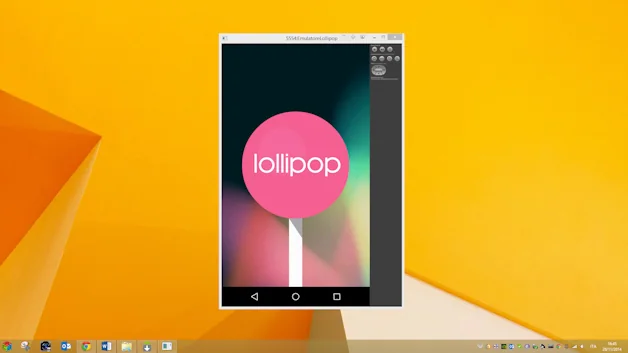
The emulator works best when the computer supports virtualization and hardware acceleration. Google’s current requirements recommend a modern 64-bit system and substantial free memory and storage; larger or newer virtual devices can need more. If the emulator is slow or fails to start, check the official troubleshooting page and your processor/operating-system support rather than downloading third-party “Android for PC” packages. Some hypervisors cannot run a hardware-accelerated emulator nested inside another virtual machine.
Know the limitations
An emulator is primarily intended for app development and testing. It does not exactly reproduce every physical phone, carrier feature, sensor, or performance condition. A virtual device with a Google Play image provides Play services under Google’s documented restrictions; an AOSP image may behave differently and can have different privileges. Use the system image’s documented configuration and do not sign into a personal account in an unofficial emulator image.
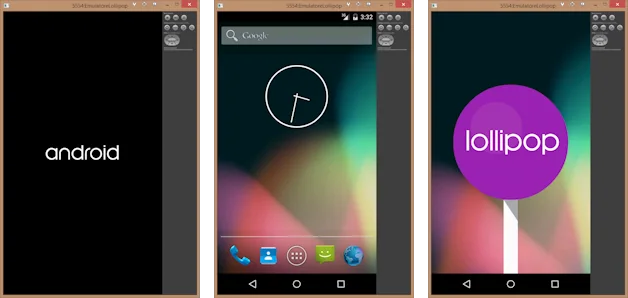
If you only want to use an Android app on a Windows PC, check whether the app publisher offers a Windows version or web app. Windows’ Android compatibility features and third-party emulators change over time and may not support every app. Download software only from its official provider and check its current support, privacy, and hardware requirements. Avoid installers that bundle unrelated programs or ask you to disable antivirus protection.
The Android Emulator is also not a security sandbox for opening unknown APKs. Treat untrusted apps as potentially harmful and test them only in an isolated environment without personal files or accounts. Google’s official guides explain how to run apps in the Android Emulator, create virtual devices, and configure hardware acceleration. These are current developer instructions; old Android 5.0 downloads should not be presented as a recommended PC installation.
Related reading: Run Android Apps on Windows with the Android Emulator.

