
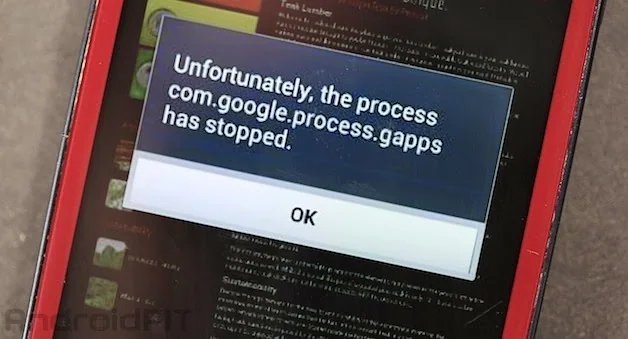
The message “com.google.process.gapps has stopped” appeared on older Android versions and could have several causes. Current phones may show different wording, and a fix that applied to an old release may not match today’s menus. Record the full message, phone model, Android version, and whether it appears in one app or across multiple Google services.
Start with low-risk checks
Restart the phone, confirm date and time are automatic, check the internet connection, and make sure storage is not full. Install available Android system and app updates through Settings and Google Play. If one app triggers the error, open its app information page and try clearing its cache if offered. Cache is temporary data; clearing storage or app data may delete settings, sign-ins, downloaded files, or unsynced content, so read the warning first.
Handle Google components carefully
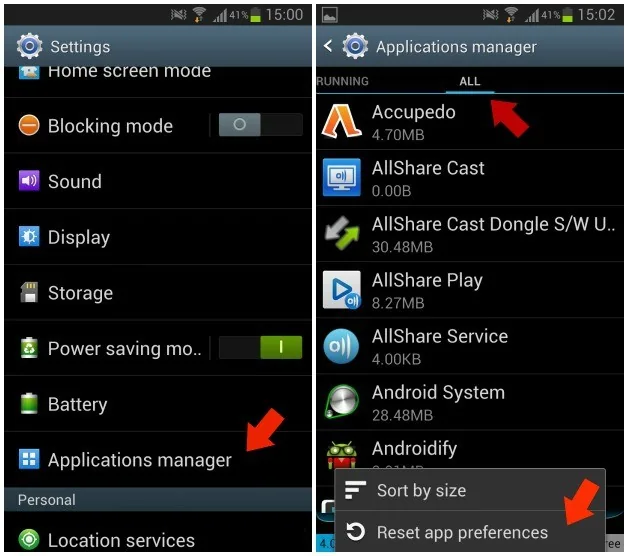
Google Play services and the Play Store support many apps. Disabling them or removing their data can affect more than the app that displayed the error. Check Google’s current Help Center and your phone maker’s instructions for your Android version. If the issue started after an update, wait for a verified fix or contact support rather than installing system APKs from random sites. Do not root the phone or switch off security protections to clear an error.

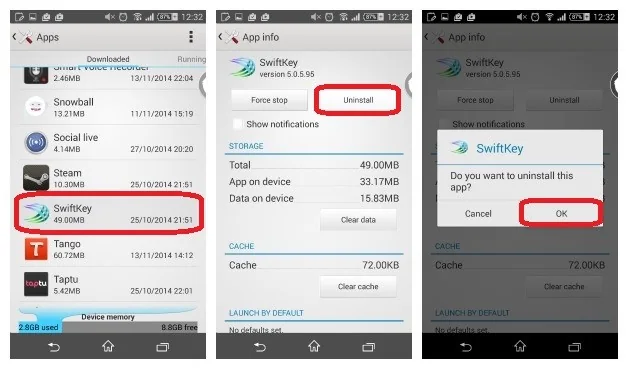
If you recently installed a cleaner, launcher, or system utility, removing that new app may help. Change one thing at a time and test again. On a work-managed phone, contact the administrator before changing management apps or settings.
When to seek help
Write down when the error occurs and what steps reproduce it. Contact the manufacturer or Google support if core services continue crashing. A factory reset erases local data and should be a last resort. First verify a backup, confirm account-recovery details, and make sure important files are accessible elsewhere. The old error may not map to a current setting, so device-specific support takes precedence over an archived tutorial.

