
USB debugging lets Android development tools communicate with a phone over Android Debug Bridge (ADB). Developers use it to install and inspect test builds, read logs and diagnose app behavior. It is not a general file-transfer switch, and most everyday users do not need it for copying photos or charging a device.
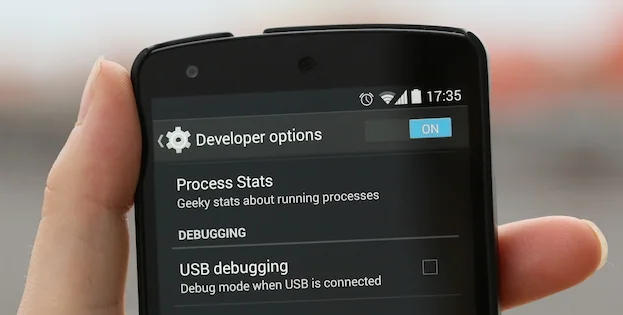
Reveal Developer options
- Open Settings and find About phone (the wording can vary by manufacturer).
- Locate Build number. On many Samsung phones it is under About phone > Software information.
- Tap Build number seven times. If prompted, enter the device PIN or password. Android should confirm that Developer options are enabled.
- Return to Settings and open System > Developer options, or search Settings for “Developer options.” Manufacturers may place it elsewhere.
Google’s Android developer documentation lists these steps and notes that menu locations vary by device and Android version. On Android 9 and later, the USB debugging control is generally in System > Advanced > Developer options, though a manufacturer’s interface may use different labels. See the current Android Developer options guide for supported paths.
Turn on USB debugging for a trusted computer
- In Developer options, switch on USB debugging.
- Connect the phone to a computer with a data-capable USB cable.
- Unlock the phone. When Android displays an RSA fingerprint prompt for that computer, approve it only if you initiated the connection and recognize the computer. You can revoke previously authorized computers from the debugging settings on many devices.
- When finished with development or troubleshooting, turn USB debugging off and disconnect the cable.
The computer must have the appropriate Android SDK Platform Tools, and some Windows devices need a manufacturer or Google USB driver. A charge-only cable, USB port, driver problem or device policy can prevent ADB from detecting the phone. USB debugging does not bypass the lock screen, and it should not be enabled to solve ordinary file-transfer problems; select File transfer (MTP) from the USB notification for that use instead.
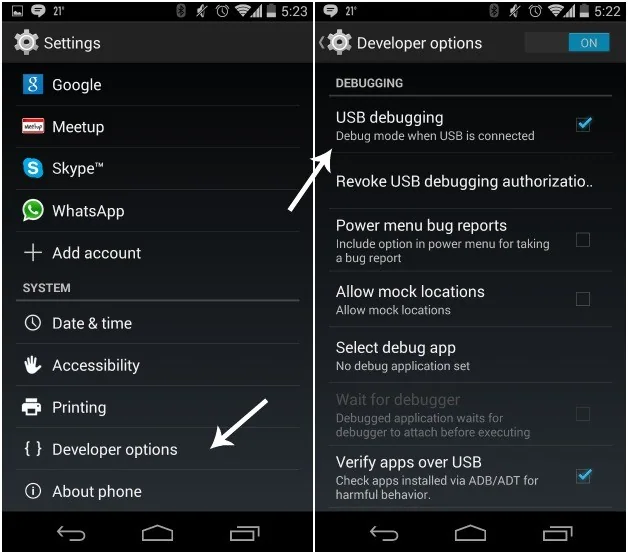
Keep the debugging connection controlled
ADB can issue commands to a device after authorization, so approve only computers you control or trust. Do not accept a debugging prompt from a public or shared computer. If you accepted one by mistake, revoke debugging authorizations in Developer options, disable USB debugging and disconnect. A work-managed device may restrict this feature; contact the administrator rather than trying to bypass the policy.
Developer options include many settings intended for testing. Changing unrelated toggles can alter device behavior or reduce security. If a step does not match your phone, use the manufacturer’s support instructions for its exact model and software version.

