
Chromebook Developer Mode is intended for people who need low-level access to ChromeOS, such as developers testing custom code. It changes the device’s security state and is different from ChromeOS’s ordinary Linux development environment or the separate debugging features in Settings. Most Chromebook owners do not need Developer Mode to use web apps, Android apps or standard Linux development tools.
Understand the trade-offs first
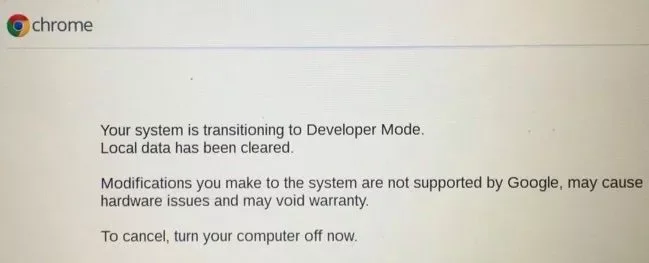
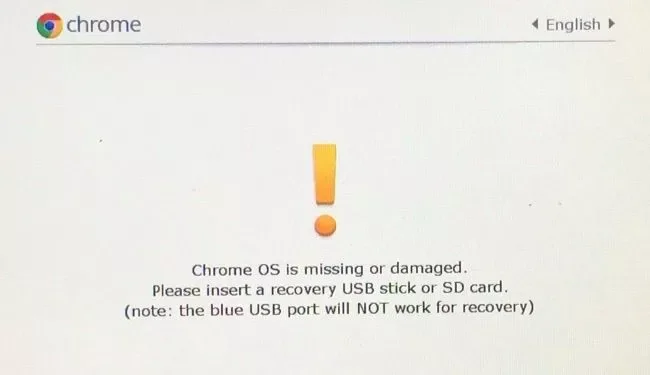
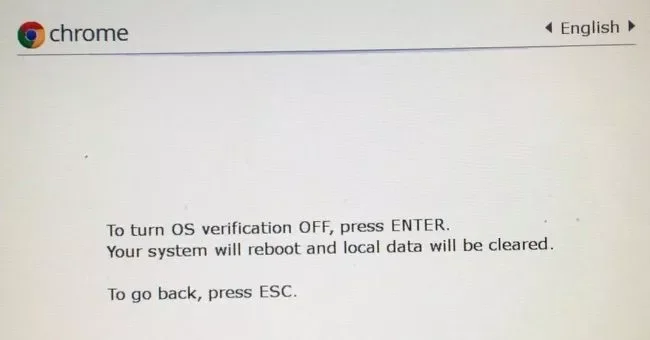
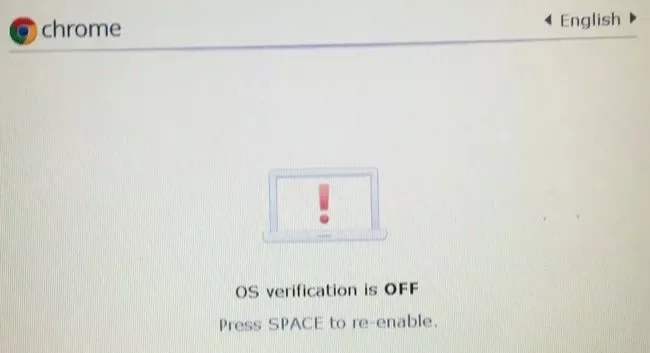
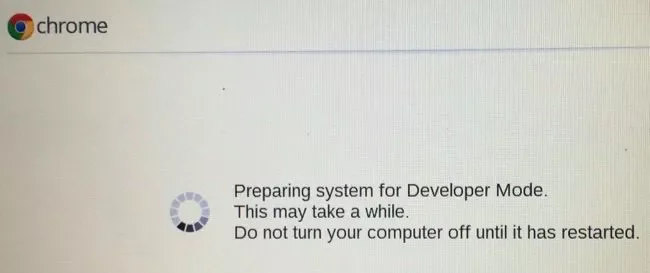
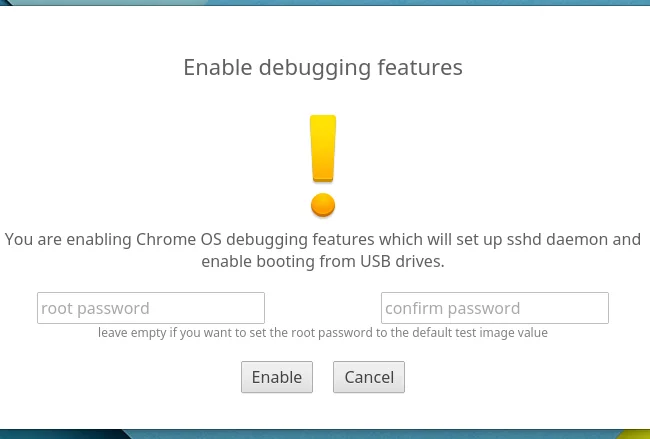
Google’s documentation explains that debugging features can remove root file-system verification, enable SSH access with test keys and allow USB booting. These capabilities are useful in a controlled test environment, but they weaken protections that normally help prevent untrusted software from changing the operating system. Moving between verified and Developer modes can erase local data, and Google documents that a recovery process may be needed to return the device to a secure state. Back up local files before any mode change, and make sure you can restore the Chromebook before proceeding.
Check ownership and management status
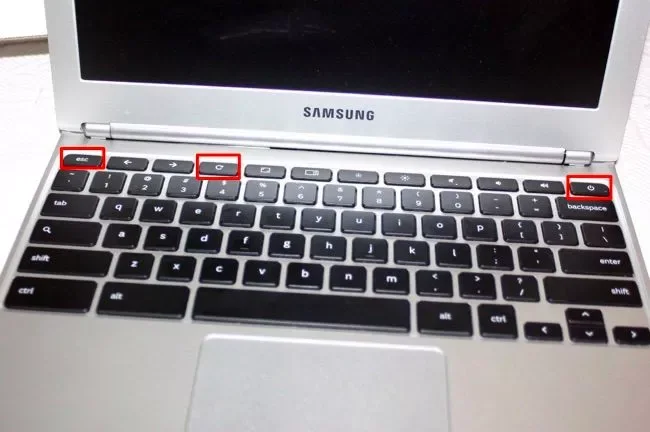
A school- or work-managed Chromebook may block Developer Mode or automatically re-enroll after a reset. Do not try to bypass an administrator’s policies; contact the organization that manages the device. For a personal Chromebook, review the current manufacturer and Google support instructions for the exact model because key combinations and available recovery options can vary. Keep the device connected to power and prepare official ChromeOS recovery media when required.
Choose the least risky tool
If your goal is app development, first check whether the built-in Linux development environment, Android Studio on a supported computer, or an emulator meets your needs. If you only want to install an app, use the Play Store or the platform’s documented installation workflow rather than changing the boot security mode. Enable only the debugging capabilities you need, and turn them off when testing is finished.
Returning to normal mode
Google’s current support pages distinguish Developer Mode from enabling debugging features, and the exit process can require recovery. Follow the current official instructions rather than an old blog’s keystrokes: ChromeOS menus, hardware and policies change over time. A powerwash removes local data, so verify backups before starting. If recovery media or device ownership is uncertain, pause and contact the manufacturer or administrator.
Official references: Google Chromebook Help: debugging features · Google Chrome Enterprise: ChromeOS wipe and recovery options · Google Chrome Enterprise: device policies and Developer Mode restrictions

