
Installing unofficial firmware on a Galaxy phone can erase data, cause boot problems, or introduce software that is difficult to verify. If you want to restore the official software or recover from a failed update, begin with Samsung’s built-in update process and support tools. Exact options depend on the model, carrier, region, and software version, so do not use a firmware file just because the model name looks similar.
Check for the official update first
On many recent Galaxy phones, open Settings, choose Software update, then Download and install. Some models use System updates or a different menu label. Samsung notes that available screens and settings can vary by provider, software version, and model. Connect to a stable network, charge the device, and follow the on-screen prompts. Do not disconnect a USB cable or use the phone while a computer-assisted update is installing. Check About phone and Software information to note the current build.
Use Smart Switch for a computer update
Samsung Smart Switch for PC or Mac may offer an update when the connected Galaxy device is eligible. Install Smart Switch from Samsung’s official site, connect the phone with a reliable USB cable, and let the program detect the device. If an update is offered, follow the prompts through completion. Samsung cautions that the phone will restart and that data may be inaccessible while the process runs. Back up important files before starting.
Recover from a failed update
If an update is interrupted and the phone no longer starts normally, Samsung provides an Emergency Software Recovery process in Smart Switch for supported situations. Its recovery guide instructs users to open Smart Switch, select the More menu, choose Emergency Software Recovery and Initialization, and follow the device-specific steps. Recovery can involve a factory data reset. Samsung explicitly warns users to back up important data before a reset, and notes that recovery using a code on another computer also includes a factory reset. If Smart Switch cannot restore the device or the phone will not boot, Samsung says service may be required.
Avoid risky firmware downloads
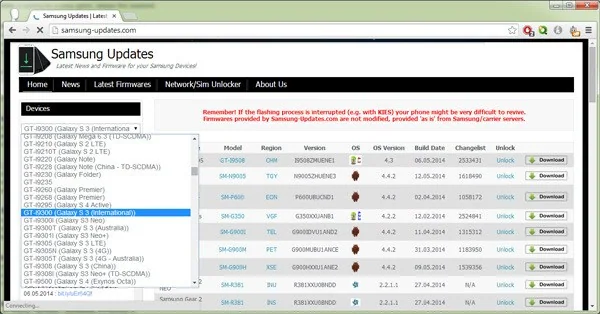
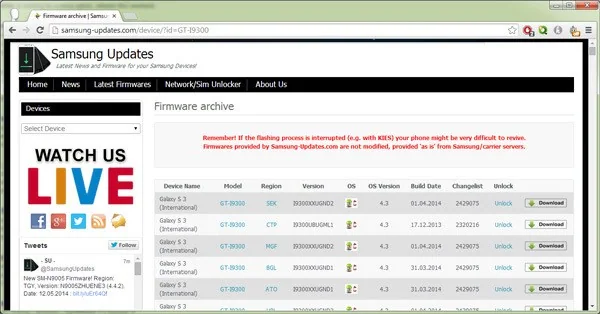
Do not flash packages from file-sharing sites, forums, or unofficial “ROM download” pages simply to force an update. A wrong regional build or device variant can make the phone unusable. Avoid bootloader unlocks or downgrade attempts unless Samsung’s official documentation for your exact model calls for them and you understand the data and security consequences. If the device is under warranty or contains irreplaceable data, contact Samsung support or an authorized service centre before experimenting.
Samsung’s official support pages are the source for model-specific update availability and recovery steps. Procedures and menu names change, so read the current instructions for your region and exact device before making software changes.

