
Adobe Photoshop Express is a mobile photo-editing app for Android. Adobe’s current help describes tools such as cropping, adjustments, healing, looks, collages and other creative edits. The exact tool set can vary by app version, device and subscription. This guide explains how to start safely and how to check the current features without relying on an old APK or dated feature list.
Install the official app
Open Google Play on the Android device and search for Adobe Photoshop Express. Confirm Adobe is named as the developer, review the supported Android version and check the latest update date before installing. Use Adobe’s official help page if the app does not appear or if you need the iOS version. Do not download an installer from an unrelated mirror; unofficial packages may be modified or bundled with unwanted software.
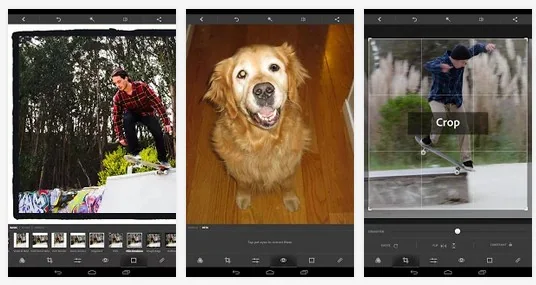
When the app opens, choose a photo from the device and begin with a reversible edit such as crop, exposure or color adjustment. Save a copy when you want to preserve the original. If the app offers cloud features, sign in only through Adobe’s official interface and review what content is uploaded. Avoid granting access to all photos if Android allows selecting only the images you intend to edit.
Understand free and paid features
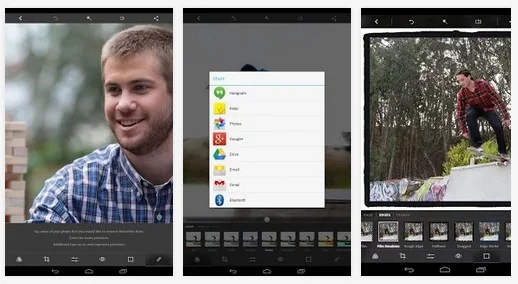
Some tools or export options may require an Adobe account, subscription or in-app purchase. Check the price and renewal terms shown in Google Play before confirming a purchase. A trial can convert to a paid subscription unless cancelled under the store’s rules. Adobe’s help pages explain current features and common troubleshooting; app screens can change after updates.

For a better result, keep the original high-resolution image, compare edits at full size and avoid overusing sharpening or filters. If a feature is missing, update through Google Play and confirm that the device meets its requirements. Adobe’s official Android getting-started guide is the source for current installation and editing steps.
For portraits, use the healing or retouching tools conservatively and keep an unedited copy. Export settings can reduce image dimensions or quality, so check the saved file before deleting the original. Avoid uploading a client’s or family member’s image to a cloud feature without permission. Adobe’s help center documents the available Android tools and subscription-specific functions.

