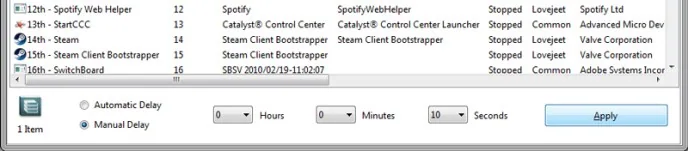
Apps that launch automatically when you sign in can make a PC feel busy, especially if several open at once. Windows 10 and Windows 11 let you review many startup apps in Settings or Task Manager. Disabling an app from startup does not uninstall it; you can still open it manually. Some security, accessibility, backup or device-management tools need to start automatically, so identify an app before switching it off.
Use Windows Settings
- Open Start, then Settings.
- In Windows 11, choose Apps, then Startup. In Windows 10, choose Apps, then Startup.
- Review the list and turn off apps you recognize and do not need immediately after sign-in.
- Restart or sign out and back in to see whether the change improves your startup experience.
Review impact in Task Manager
Right-click Start and open Task Manager, then choose Startup apps (or the Startup tab in some Windows versions). Review each app’s publisher and startup impact. A high-impact label indicates an app uses more resources during startup; it does not mean the app is malicious or that it must be disabled. If you are unsure, search the app name on the publisher’s official site or leave it enabled.

Windows may also allow startup behavior to be controlled inside the app itself. Some programs are not listed in the Startup page because they use a startup folder, scheduled task, service or device-specific process. Avoid deleting unfamiliar files or changing registry entries to force an app to stop launching; doing so can break sign-in, updates, backups or security protections.
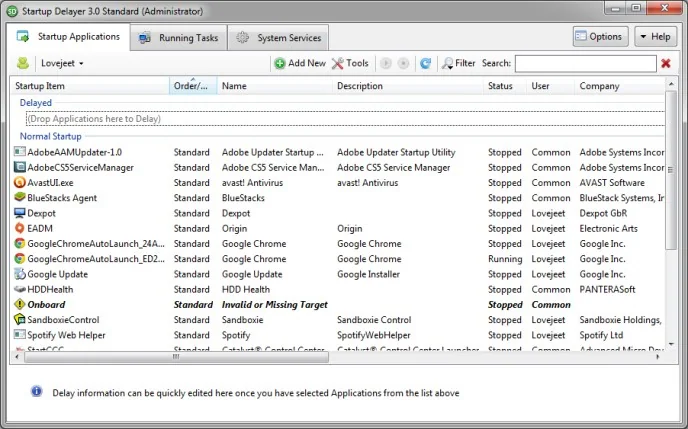
About delaying startup
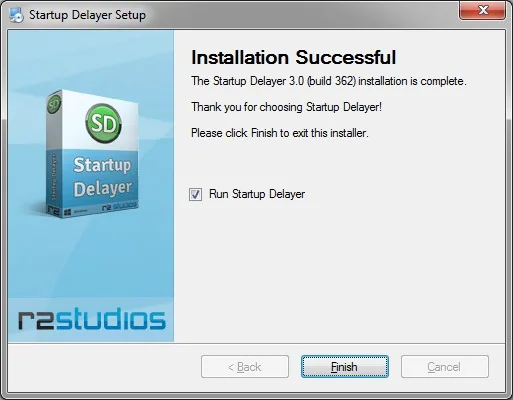
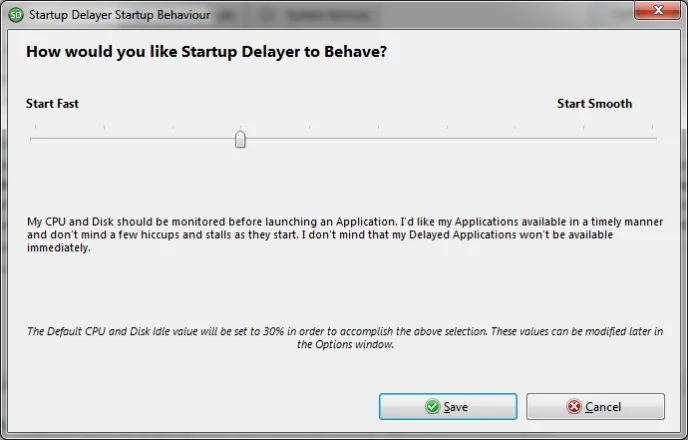
Windows’ built-in controls generally let you enable or disable supported startup entries rather than assign an exact delay timer to each app. If you need a particular app to open later, first check whether that app has a “start minimized” or startup preference. Avoid installing an old startup-delay utility from an unknown download site. A delay can hide the symptom without reducing the work performed at sign-in.
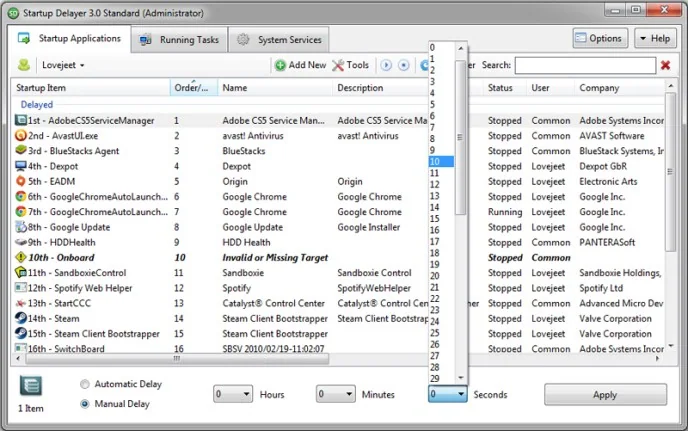
For a slow PC, also check available storage, install Windows updates and look for apps that repeatedly consume CPU or disk after startup. Make one change at a time and keep notes so you can restore the previous behavior. On a work-managed computer, organization policy may control these settings.