
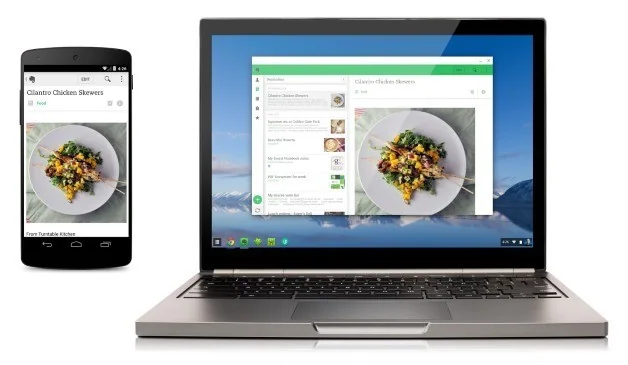
Many Chromebooks can run Android apps through the Google Play Store, but support is not universal and an Android app may behave differently on a laptop-sized screen. Google notes that the Play Store is available only on some Chromebooks, and some apps are not compatible with particular devices. Check your model and ChromeOS version before planning a workflow around a phone app.
Check whether your Chromebook supports Google Play
First install any available ChromeOS updates and restart the Chromebook. Select the time in the lower-right corner, open Settings, then look under Apps for Manage Google Play preferences. If that option is missing, Google says the Chromebook may not support Android apps. A work or school device may have Play Store installation disabled by an administrator, so contact the administrator instead of trying to bypass management controls.
Enable Play and install an app
If the setting is available, open Manage Google Play preferences and follow the on-screen terms to turn on Google Play. Then open the Play Store from the Launcher, search for the app, and install it from its official listing. Apps from a phone do not automatically appear on a Chromebook; Google says you must download them again. Use the Play Store publisher information and app permissions to confirm you have selected the intended app.
Check compatibility before relying on it
Not every Android app supports Chromebooks. An app may be hidden from search or show a device-incompatible message when the developer has restricted it or when the Chromebook lacks a needed capability such as GPS. The touchscreen, keyboard, mouse, camera, and window size can also change how an app feels compared with a phone. Test essential functions before depending on the app for school or work. If it does not appear in Play, contact the developer or use its official website if available; do not sideload a random APK as a workaround.
Review permissions and account behavior
ChromeOS provides controls for Android app permissions, including location and storage access. Open Settings, go to Apps and Google Play preferences, then use Android settings and Permission manager to review which apps can access device features. Google notes that Android apps may read files from the Chromebook’s Downloads location when permitted. If you turn off the Play Store, Android app data and settings on the device are erased, so back up any information you need first.
Keep ChromeOS and apps updated, install only software you trust, and review Google’s current Chromebook support pages for model availability and changing menu labels.

