
If an Android phone is already connected to a Wi-Fi network, current Android versions may let you share access through a QR code. This is safer and simpler than rooting a phone to read internal configuration files. The exact menu labels vary by manufacturer and Android version, and some managed or enterprise networks disable sharing. Only share a network you are authorized to use, and remember that anyone who receives the code may be able to join while the password remains unchanged.
Use Android’s built-in sharing option
Open Settings, go to Network & internet or Connections, choose Internet or Wi-Fi, select the connected network, then tap Share. Authenticate with the phone’s screen lock if prompted. Android displays a QR code that another nearby device can scan to join. On some phones the screen may also display the password in plain text. If you cannot find the option, search Settings for “Share Wi-Fi” or consult the manufacturer’s manual for your exact model. You can also check the router’s label or its official administration interface if you own or manage the network.
Protect the network credential
Treat the QR code like a password: do not post it publicly, include it in a screenshot sent to a group, or leave it visible in a shared space. For guest access, use a separate guest network with client isolation if the router supports it. Change the Wi-Fi password if it was exposed, then reconnect trusted devices. Avoid third-party apps that request root access or ask to upload saved network details; they may expose credentials for every stored network.
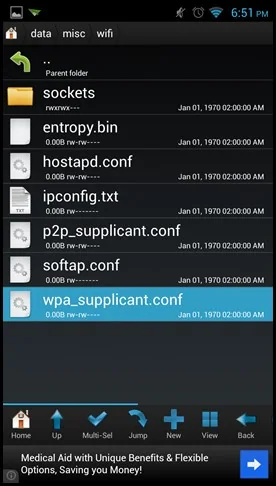
Why old root-based instructions are risky
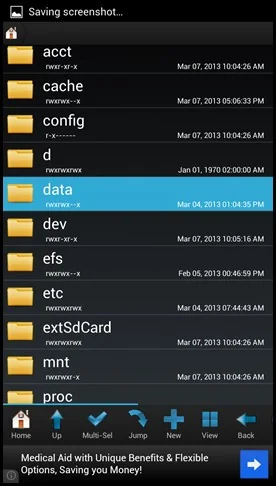
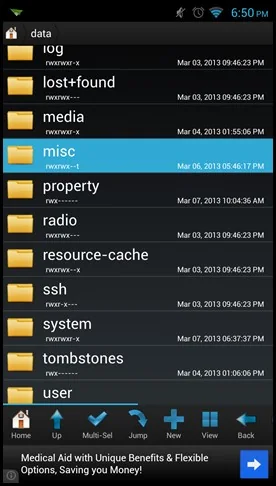
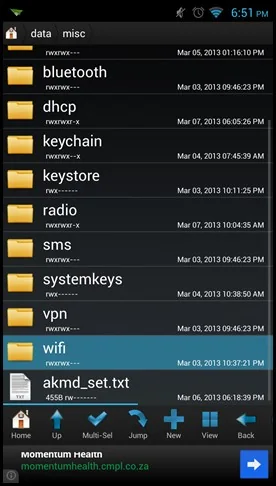
Older tutorials often tell readers to install a file browser with superuser access and open Android’s private Wi-Fi configuration files. That approach relies on elevated access, exposes more information than necessary and may not work on current Android releases. Rooting can weaken security, break update or payment features and void support terms. Do not attempt to bypass a work or school administrator’s restrictions. Ask the network owner to provide a guest credential instead.
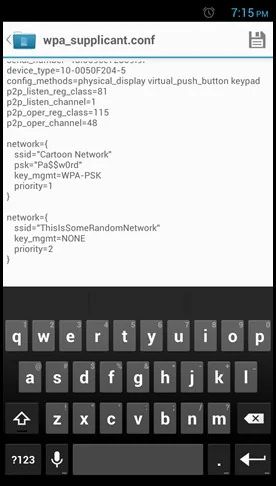
Verify and clean up
After sharing, have the other person confirm that the correct network name appears before connecting. Use a unique router password and modern WPA2 or WPA3 security when available. Keep router firmware current, disable remote administration unless needed, and remove unknown connected devices using the router’s official controls. Android’s built-in QR workflow shares access without revealing private system files, but it does not replace the network owner’s permission or security policy.

