
Windows Vista includes a new feature called ReadyBoost that lets you plug in a flash memory stick or SD card to store commonly used files for quicker access than off the hard drive.
Key details
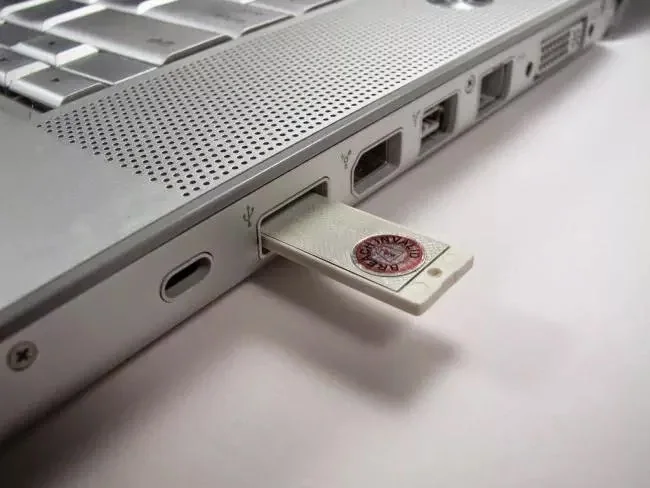
Just stick the flash drive, SD card, or whatever flash device you want into your computer.
You’ll see this dialog pop up: Click the “Speed up my system” link, and you’ll be taken to the ReadyBoost panel for the flash drive: Just select Use this device, and set the amount of space you want to use.
Windows will create what is essentially a paging file on the disk, and will use it for faster access.
Practical considerations
Note that this will only work with USB 2.0 devices or SD cards.
Check current requirements
Confirm the current version, availability and official documentation for the product or service before following this guidance.

Legacy Windows support and security
Windows 8.1 and Vista are historical operating systems, not current recommendations for an internet-connected PC. Microsoft ended Windows 8.1 support on January 10, 2023, and Vista support ended earlier. Unsupported systems no longer receive routine security fixes, increasing exposure as vulnerabilities emerge. Performance tips such as ReadyBoost cannot replace security updates.
Determine whether older hardware can run a supported system. Back up files and verify software, peripheral and license compatibility before upgrading. If hardware cannot meet current requirements, consider replacement or a supported alternative that receives updates. Avoid unsupported computers for banking, password management or sensitive work.
Use official installation sources and never rely on modified installers or activation bypasses. A clean installation can erase files, so preserve a verified backup and recovery keys. Consult Microsoft lifecycle pages for current options; original screenshots are not current setup instructions.
ReadyBoost was a feature for an older Windows release and should not be treated as a current performance recommendation. An external flash drive is not a substitute for adequate memory, a healthy storage device or supported software. Before troubleshooting a legacy PC, back up important files and disconnect it from sensitive accounts if it no longer receives security patches. For a present-day computer, use supported diagnostics and consult the manufacturer before replacing components. Retire old removable media securely if it contains personal data.

