
Windows includes multiple desktops, also called virtual desktops, so you can separate open windows into workspaces without closing your apps. For example, keep research and writing on one desktop and a meeting or personal task on another. The desktops are organizational spaces on the same Windows account; they are not separate user accounts and do not provide a privacy boundary from someone using the same account.
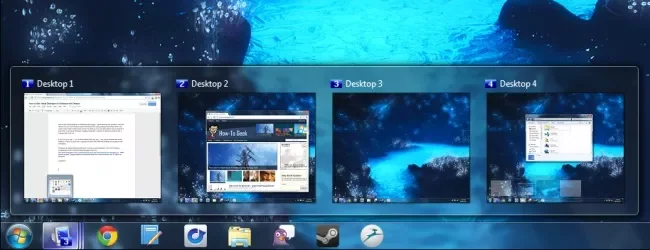
Create and switch desktops
Press Windows key + Tab to open Task View, then select New desktop. You can also press Windows key + Ctrl + D to create one immediately. To move between desktops with the keyboard, press Windows key + Ctrl + Left Arrow or Right Arrow. Task View shows the available desktops and open windows; select a desktop to switch to it. These shortcuts are supported in current Windows guidance, though some keyboards may require using the Fn key for function-row actions.
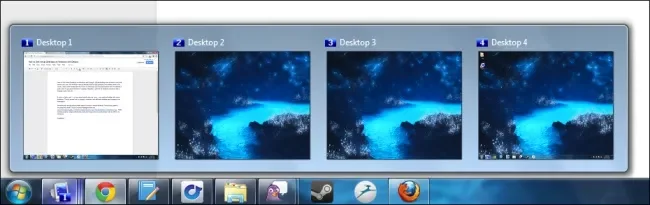
Organize open windows
Open the apps you need, then use Task View to drag a window to another desktop when you want to move it. You can rename desktops from Task View to make their purpose clear, such as Research, Editing or Meetings. On supported Windows versions, you can also choose a picture background for each desktop, which helps distinguish spaces visually.
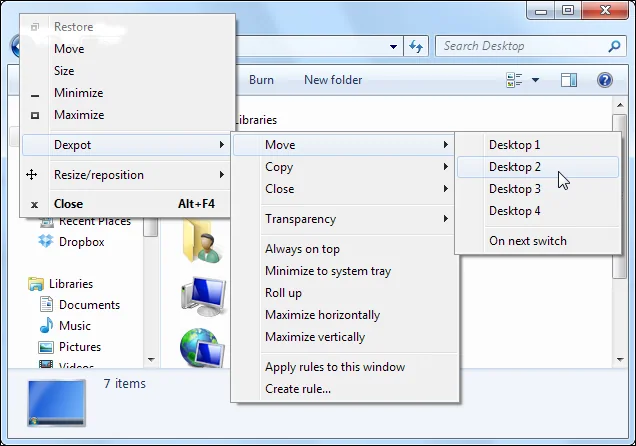
Choose what appears on the taskbar
Windows lets you control whether taskbar buttons and Alt+Tab show windows from every desktop or only the current one. Open Settings, go to System, then Multitasking, and expand the Desktops section. Choose the behavior that fits your workflow: showing all windows makes apps easy to reach, while showing only the current desktop can reduce clutter.
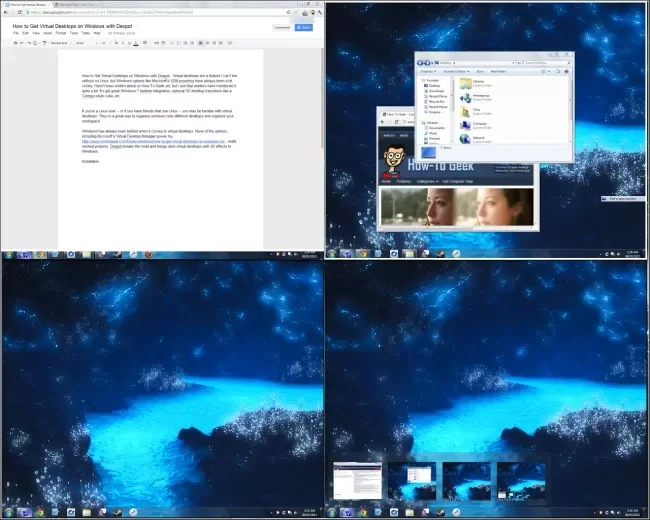
Close a desktop safely
Use Task View to close a desktop you no longer need, or press Windows key + Ctrl + F4 to close the current one. Closing a desktop does not close its open apps; Windows moves those windows to another desktop. Before closing, check Task View so you know where the windows will go.
Multiple desktops are useful for reducing visual clutter, but they do not isolate files, notifications or account access. Use separate Windows accounts when you need separate sign-ins or permissions. Microsoft’s instructions cover the current desktop creation and customization options.
References: Microsoft: configure multiple desktops and Microsoft: multitask in Windows.

