
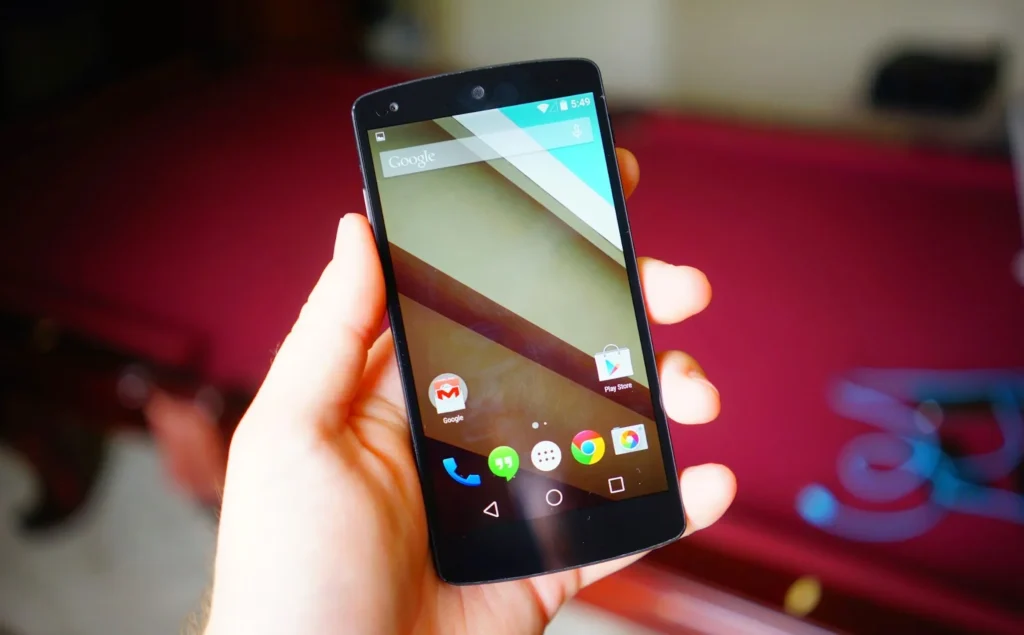
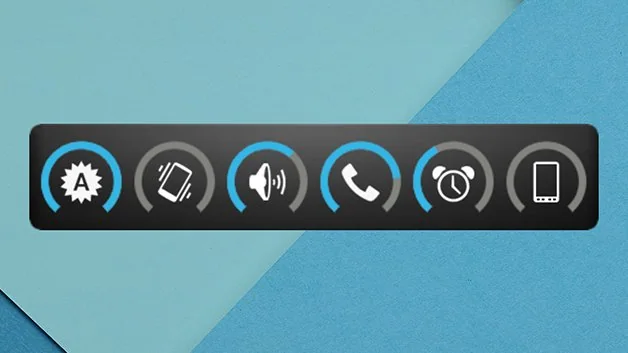
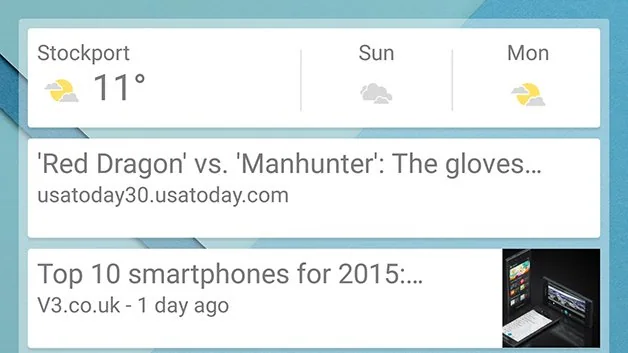
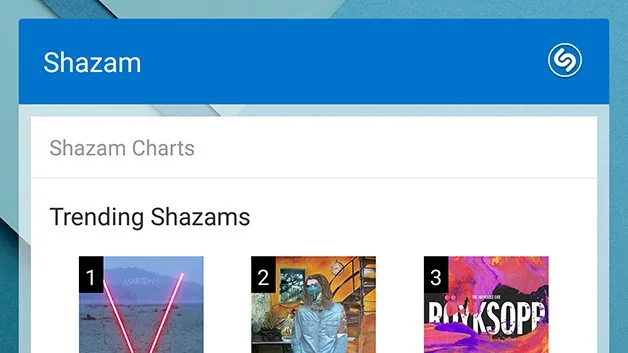
Android widgets put useful information or controls on the Home screen so you can check something without opening its full app. Available widgets depend on the apps installed and the phone maker’s Android version, so a widget shown on one device may not exist on another. Instead of relying on an old list of “best” widgets, use the current widget picker to see what your own apps support.

Add a widget
- Go to the Home screen where you want the widget.
- Touch and hold an empty area of the screen.
- Tap Widgets.
- Browse or search the list, then touch and hold the widget you want.
- Drag it to the desired spot and release.
Some widgets show a setup screen after you place them. For example, a calendar widget may let you select which calendar to display. Others work immediately. If you do not see a widget from a particular app, check that the app is installed and updated; not every app offers a widget.
Resize or move a widget
Touch and hold the widget. If resize handles appear, drag an edge or corner to change its size. The range and layout depend on the widget and the available Home screen space. To move it, keep holding and drag it to another location or Home screen. To remove it, drag it to the screen’s Remove area or use the option that appears after a long press. Removing a widget does not uninstall its app.

Choose widgets thoughtfully
Widgets can make information easier to reach, but large or frequently refreshing widgets may make a Home screen feel crowded. Keep only the ones you use, and review the data they display before placing them on a shared or visible screen. A widget may show calendar events, reminders or other private information to anyone who can see the unlocked device.
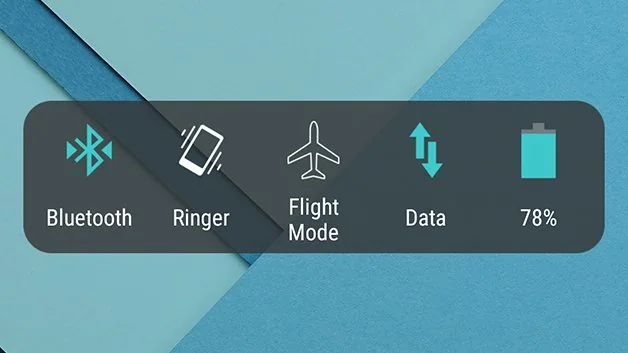
Android menus vary by manufacturer and version. If the steps differ, search Settings or the launcher help for “widgets.” Google notes that some Home screen steps depend on Android version; your device maker’s support page is the best reference for manufacturer-specific behavior.
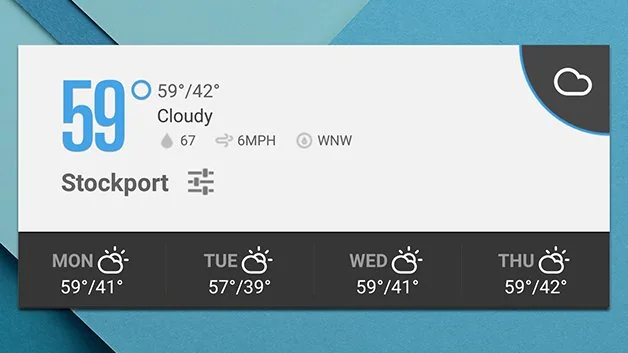
The original 2015 article recommended individual widgets for Android Lollipop. App availability and design have changed, so this guide focuses on the lasting task: finding, placing, resizing and removing widgets that are currently available on your device.

