
Windows apps are safest to install from the Microsoft Store or the software publisher’s official site. Some organizations distribute signed app packages outside the Store; this is called sideloading. It can be appropriate for a trusted workplace app or developer test, but it also creates more opportunities to install software that has not been reviewed by the Store. Do not turn on developer features simply because a random download page instructs you to.
Prefer a trusted distribution source
Before installing an app, check whether it is available in the Microsoft Store. If the publisher distributes it directly, navigate to the publisher’s official website yourself and verify that the download page names the product and organization you expect. Avoid installers delivered through unsolicited email, pop-up ads, file-sharing sites, or download “wrappers.” Check the publisher, digital signature, release notes, and requested permissions. A valid signature helps identify a publisher and detect tampering, but it does not prove that an app is safe or appropriate.
Understand signed MSIX packages
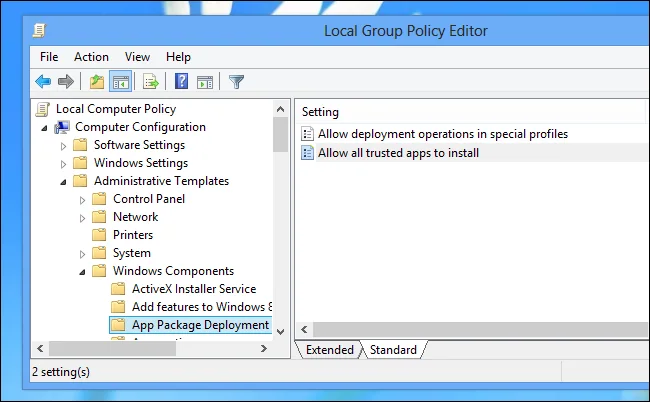
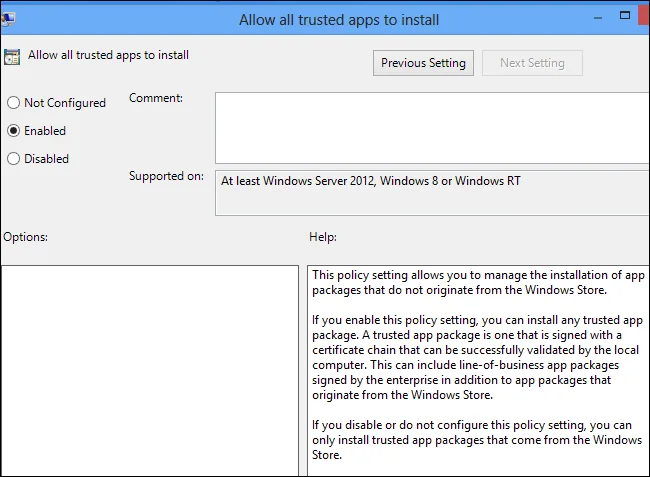
Microsoft documents sideloading signed app packages for Windows 10 and Windows 11. Organizations can sign their own line-of-business apps with a certificate the device trusts. Microsoft warns that enabling sideloading allows apps from outside the Store and may increase risks to the device and data. On managed work or school computers, policy may control the setting. If an administrator provided the package, ask them to confirm its signature and deployment instructions before proceeding.
Do not enable Developer Mode for everyday use
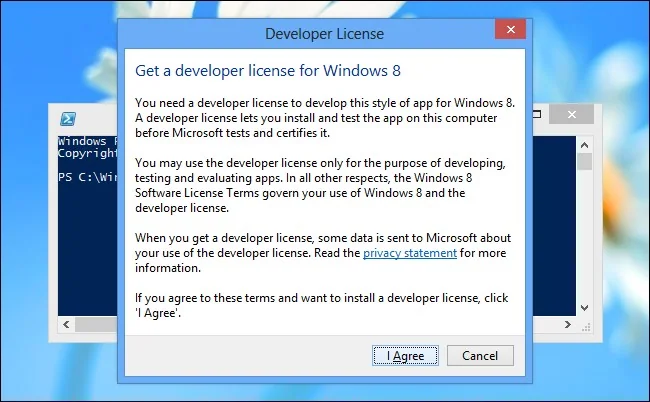
Developer Mode is designed for building, deploying, and testing apps. Microsoft says ordinary users performing day-to-day tasks such as browsing, gaming, or email do not need to enable it. Current Windows versions place the setting under System and Advanced settings, while older builds used a For developers page. Settings labels differ between versions, which is another reason not to follow old Windows 8 screenshots on a current PC.
Clean up and respond to warnings
If Windows SmartScreen or security software warns about a download, do not bypass the warning until you independently verify the publisher and package. If you no longer need a sideloaded app, uninstall it through Settings and remove any trust certificate only if you know it was installed solely for that app and is no longer required. On a managed device, contact IT before changing app installation settings.
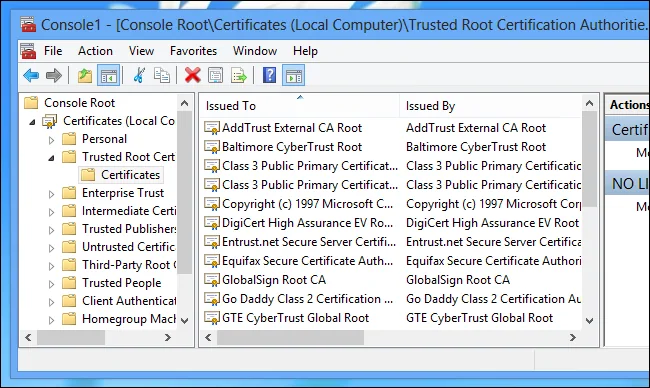
Use the current Microsoft Learn instructions only for a package supplied by a publisher or administrator you trust. For most people, the Store or the developer’s official, signed installer is the better starting point.

