
A drive formatted for macOS may not be writable on a Windows PC. Before changing anything, identify the current file system and make a verified copy of every file you want to keep. Formatting creates a new file system and destroys data on the selected volume; there is no safe in-place conversion from APFS or Mac OS Extended to exFAT using the standard Disk Utility workflow.
Choose the right format
For a portable drive that needs to move between recent Macs and Windows PCs, exFAT is usually the practical choice. Apple lists exFAT as compatible with Windows. FAT (also called MS-DOS in Disk Utility) can be useful for some older devices, but it has limitations and is generally a poor choice for a large modern drive. NTFS is Windows-oriented; macOS may read an NTFS volume but does not normally write to it without additional software.
Reformat from a Mac
- Copy the drive’s files to another disk or cloud backup and open several copied files to verify the backup.
- Connect the external drive. Open Disk Utility, choose View, then Show All Devices.
- Select the correct physical external device in the sidebar. Double-check its name and capacity; choosing the wrong disk can erase the wrong data.
- Click Erase. Choose a scheme supported by the devices that will use the drive, select ExFAT as the format for broad Windows compatibility, and enter a recognizable name.
- Read the erase warning and proceed only after confirming the backup. When finished, eject the drive safely, connect it to Windows, and confirm it appears in File Explorer.
Or use Windows Disk Management
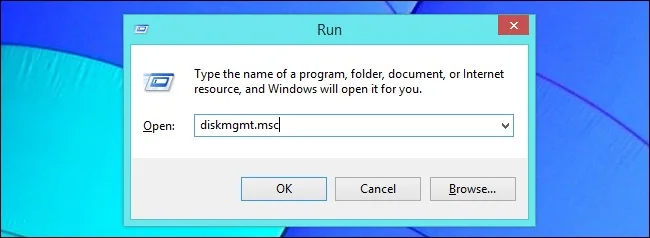
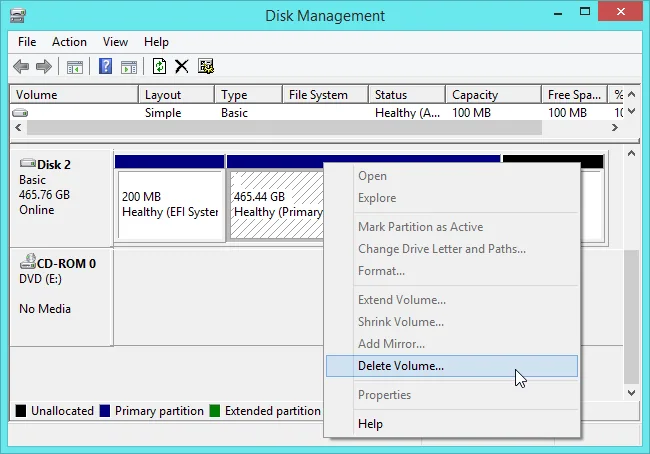
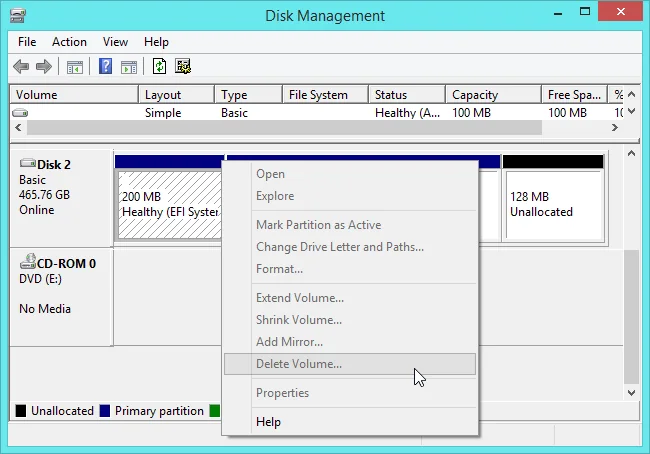
After copying the files elsewhere, open Disk Management from the Start menu. Identify the external disk by its size and partitions. If Windows can see a volume and offers Format, choose it only after verifying the correct volume and understanding that formatting deletes its contents. Windows may not show a Mac APFS or HFS+ volume as a normal mountable partition; in that case, use a Mac to back up the data and reformat, or use a trusted compatible system to copy the files first. Do not initialize or delete partitions just to make a drive appear.
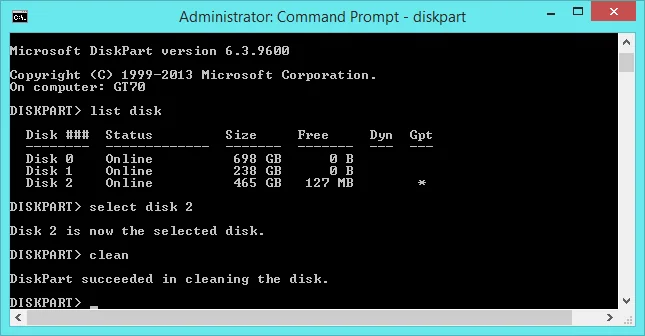
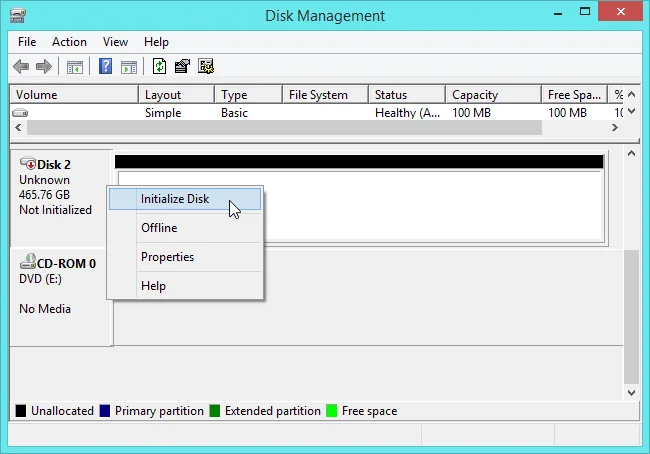
After formatting, safely eject the drive before unplugging it. Keep a separate backup for important files; a cross-platform format improves compatibility but is not a backup or encryption method.
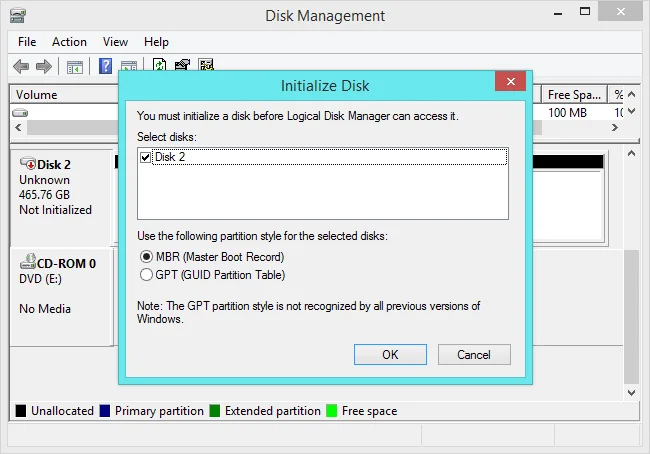
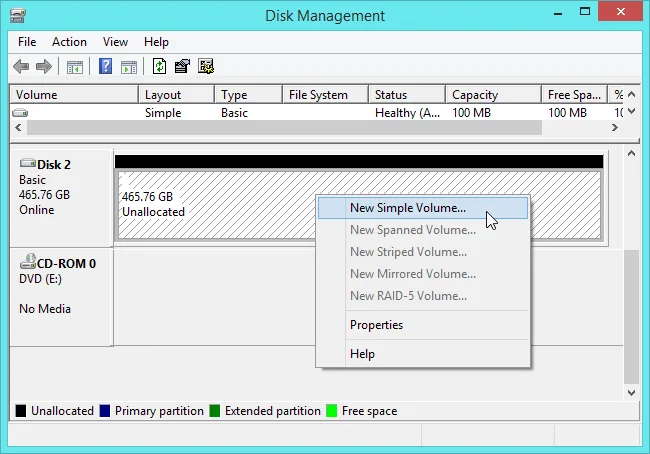
Official references
Apple Support: file system formats in Disk Utility · Microsoft Support: Disk Management in Windows

