
The old “Android Wear Ready” label is no longer a reliable way to judge a smartwatch purchase. Wear OS versions, phone requirements and companion apps differ by watch model and manufacturer. Check the exact watch’s current compatibility page before buying; a phone that can pair with one Wear OS watch may not support another model’s full feature set.
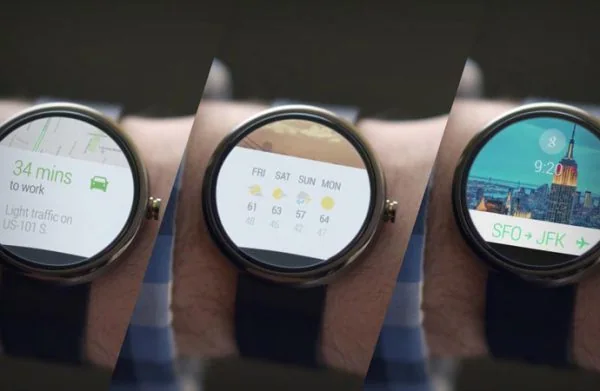
Check the watch model and software first
- Find the exact watch model and its Wear OS version in the maker’s product specifications or support page.
- Open the manufacturer’s setup instructions and note the required phone operating system, companion app, Google Account and regional limitations.
- Check whether the watch uses Google’s Wear OS app or a manufacturer-specific app. Google notes that watches running Wear OS 3 do not pair through the Wear OS app; some models require a separate companion app.
- Look at the current app listing on Google Play or the manufacturer’s official app store page and confirm it is available for your phone.
- Confirm that Bluetooth works on both devices, the phone can install the required updates, and the account needed by the watch is available in your region.
Pairing is not the same as feature support
A watch may connect but still lack some functions on a particular phone. Notifications, calling, contact sync, health features, payments, assistant features and software updates can depend on the phone brand, operating-system version, account, app permissions and country. Read the product’s compatibility notes for the specific feature you need rather than relying on a generic Android version number or the old Android Wear branding.
For a first setup, charge both devices, enable Bluetooth, install the official companion app, and follow the on-screen pairing flow. Keep the watch close to the phone. If the watch is not discovered, restart both devices, update the companion app, confirm the watch is not still paired to another phone, and use the manufacturer’s reset or troubleshooting guide. A factory reset can remove watch data, so check the maker’s instructions before resetting.
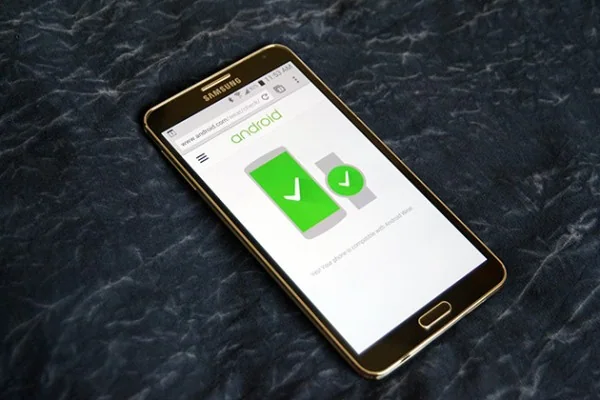
Before purchasing a used watch
Ask the seller for the full model number and confirm that it can be reset and removed from the previous owner’s account. Check that the watch still receives supported updates and that replacement bands or chargers are available if important to you. Google Pixel Watch, Samsung Galaxy Watch and other Wear OS devices have distinct support pages and requirements; use the page for the exact product rather than assuming all watches use the same setup process.
Official references
Google Wear OS Help: set up your watch · Google Wear OS Help: troubleshoot a watch that does not appear · Google Pixel Watch specifications and compatibility

