
Android phones can show caller information or warn about suspected spam, but exact features depend on the phone and calling app. Google’s Phone app includes caller ID and spam protection on supported devices. Before enabling it, review the privacy information: Google says the feature may send numbers for calls to or from people outside your contacts to help identify business callers or determine whether a call may be spam.
Turn on caller ID and spam protection
- Open the Phone app.
- Tap the More options menu, then Settings.
- Choose Caller ID and spam.
- Turn on See caller ID & spam.
- If available, enable Filter spam calls to block or silence calls identified as spam.
The setting may be unavailable if your device uses a different phone app or a manufacturer-specific dialer. Some devices with automatic Call Screen do not show a separate spam-filter option. Do not assume that caller ID is always accurate: spoofed numbers and incorrectly classified calls can occur.
Block or report a number
In the Phone app’s recent-call list, select the call and choose Block or Report spam when offered. If a legitimate number is marked as spam, open the call entry and choose Not spam or unblock it. Check the app’s call history and voicemail after enabling filtering because Google notes that filtered calls may not trigger missed-call or voicemail notifications in the usual way.
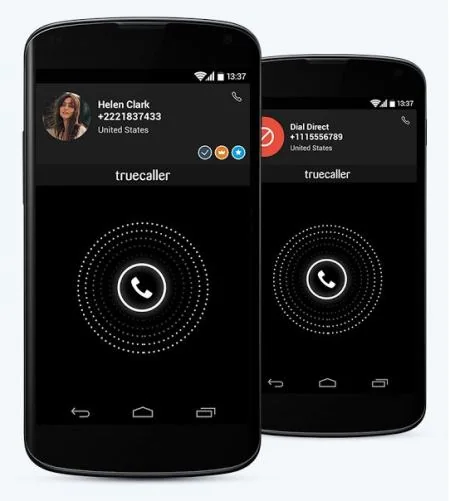
Protect yourself from impersonation
A familiar name or local-looking number does not prove who is calling. If someone claims to represent a bank, government office or service and asks for a password, verification code or payment, end the call and contact the organization using a number from its official website or app. Caller ID tools can help flag suspicious calls, but they cannot verify every caller or replace careful judgment.
Review privacy and availability
Google says caller ID and spam protection does not control whether your own number appears when you place calls. You can turn the feature off in the same settings screen. Features and requirements vary by Android version, region, manufacturer and Phone app version; update the app and follow the on-screen descriptions before enabling screening.
The original article promoted a third-party caller-identification app. This updated guide uses Google’s built-in Phone app controls and explains the data considerations so readers can decide whether to enable them.

