
Windows 8 introduced a redesigned Start screen, but capturing what appeared on screen still relied on familiar Windows tools. This article is a historical guide for readers working with Windows 8-era PCs. Its instructions should not be treated as current Windows guidance, and keyboard behavior can vary with laptop layouts and manufacturer settings.
Capture the full screen
On a standard keyboard, pressing Print Screen (often labelled PrtScn or a similar abbreviation) copies an image of the screen to the clipboard. It does not necessarily create a file by itself. Open an image editor or document and paste with Ctrl+V; then use that application’s save command to create a file. If the keyboard combines Print Screen with another function, consult the device maker’s instructions for the correct key combination.
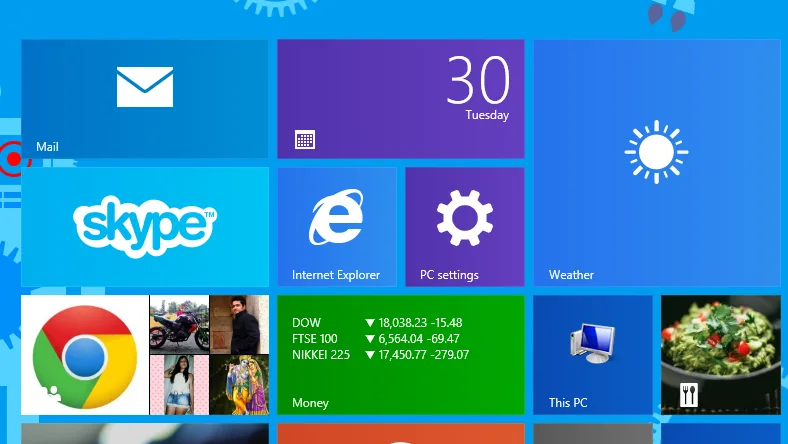
Capture just the active window
To copy only the selected window, make it active and press Alt+Print Screen. Microsoft’s support material describes this shortcut as copying the active window to the clipboard. Paste the result into an image editor or document and save it there.
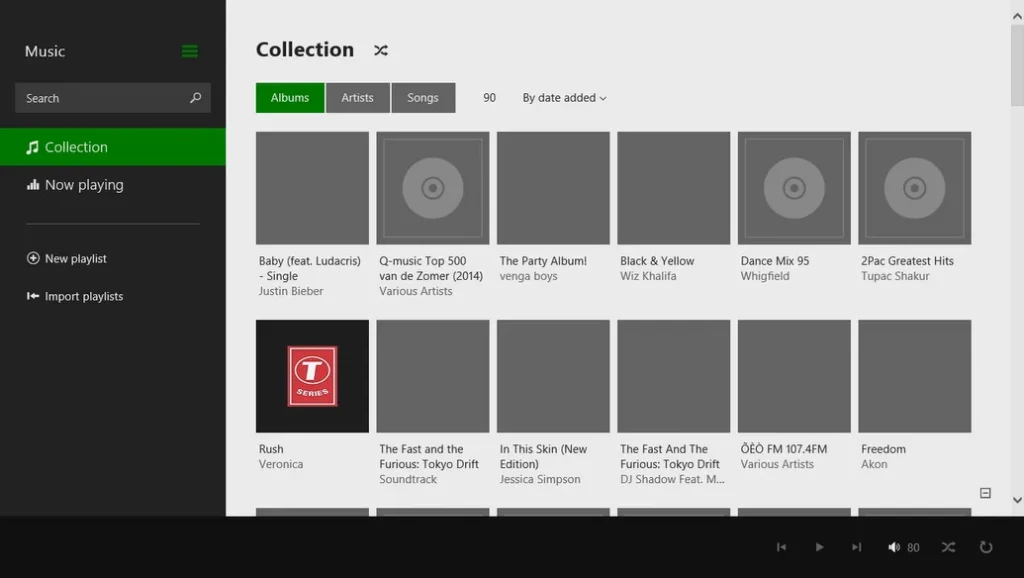
Use Snipping Tool for a selected area
Windows 8 included the Snipping Tool, which can capture a selected part of the desktop and let you save the result. Search for Snipping Tool from the Start screen, open it, choose the available snip mode, and select the area to capture. The precise appearance of menus may differ between Windows 8 and 8.1. Because Microsoft’s currently available Snipping Tool article documents newer Windows versions, it is not evidence for every older menu or shortcut.
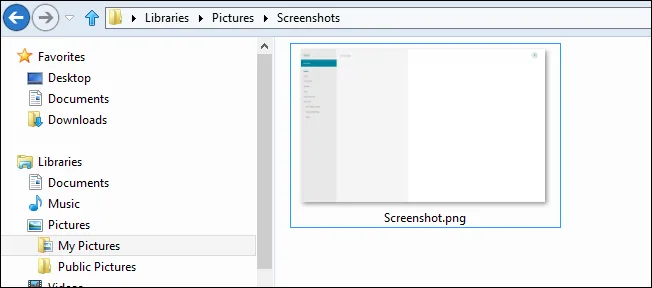
Saving and checking the image
When a capture is on the clipboard, paste it into an application such as Paint and use that application’s Save or Save As command. Choose a folder and file type you can find later, then reopen the saved image to confirm that it is complete. Avoid assuming that every keyboard shortcut automatically saves to a Screenshots folder; Microsoft’s current documentation describes behavior that may apply only to newer releases or particular devices.
This guide preserves the Windows 8 context while avoiding unsupported claims about default save paths and newer shortcuts. Windows 8 is an older platform, and current Microsoft documentation may describe later releases. If you still use a Windows 8 device, consult documentation specific to its version and hardware.

