
Android camera apps vary by phone because image quality depends heavily on the camera hardware and the manufacturer’s software. A third-party app cannot guarantee better photos on every device. Rather than trust an old “best apps” list, identify the feature you need, check whether your phone already supports it, and test an app with ordinary photos before relying on it.
Start with the built-in camera
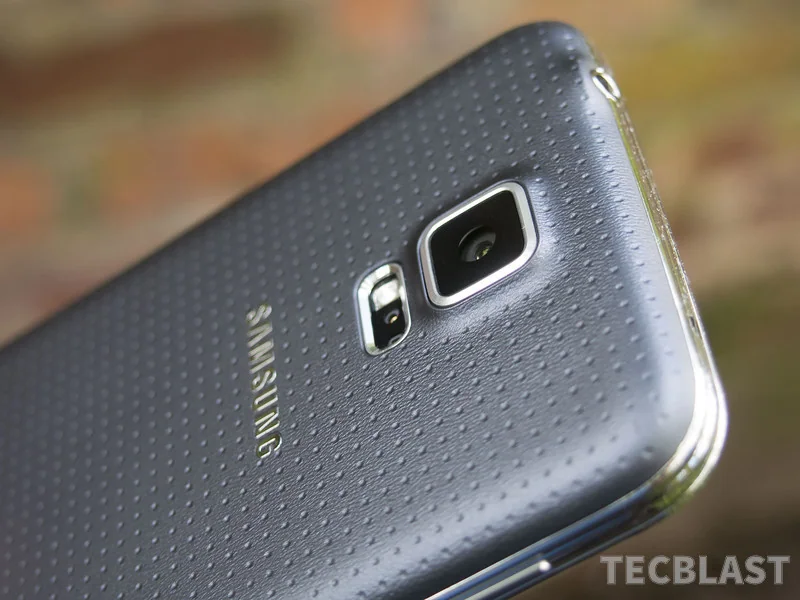
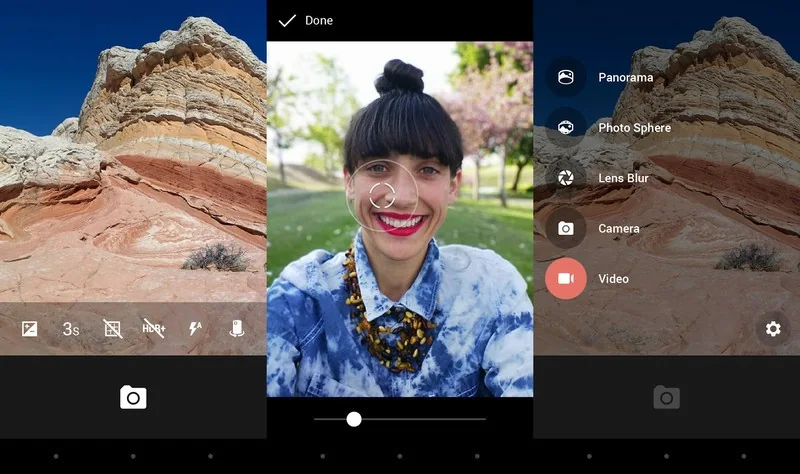
The camera app installed by the phone maker is usually the best baseline for testing focus, exposure, low-light photos, video stabilization, and lens switching. Try its settings first. If you need manual controls, RAW capture, a timer, or a particular accessibility feature, compare current apps that explicitly support your phone model and Android version. Some camera features depend on hardware or manufacturer extensions, so a feature advertised for one phone may be unavailable on another.
Check permissions and developer details
Camera access is a sensitive Android permission. Review an app’s requested camera, microphone, photo, and location access, and ask whether each permission matches a feature you use. Android lets you manage app permissions in Settings; menu names vary by device. If an app only needs to take a picture using the built-in camera, Android documentation describes using the system camera intent rather than requesting direct camera access. That developer detail is useful when assessing how an app works, but it does not by itself certify an app as safe.
Evaluate image quality fairly
Take the same scene with the built-in app and the candidate app in daylight and low light. Compare focus consistency, color, motion blur, saved resolution, and whether the app adds watermarks or compresses images. Review the exported file, not just the preview, and test video separately. Read recent reviews for issues on your specific phone model, but treat ratings as one signal rather than proof. Install from Google Play or the verified developer source and avoid modified APKs.
Choose based on your actual use
Keep a third-party camera app only if it reliably adds something valuable and continues to receive updates. Recheck permissions after app updates, and revoke location tagging if you do not want GPS coordinates stored with photos. If the camera behaves unexpectedly, check Android’s privacy indicators and permission history, then uninstall the app if you cannot explain its access. Features and menus change, so confirm compatibility and privacy disclosures before making a current recommendation.
Official references: Android camera permission reference · Android guidance on minimizing permission requests · Manage app permissions on Android

