
If a Windows PC or Mac does not recognize a Galaxy phone, start with the USB connection and file-transfer permission. A charging cable may not carry data, and Android may be set to charge only. Samsung’s Smart Switch troubleshooting guide recommends checking device requirements, trying a data-capable cable and another USB port, and allowing the phone’s MTP connection when prompted.
Check the cable, port, and phone lock screen
Unlock the Galaxy phone, disconnect it, then reconnect it with a cable known to support data transfer. Plug directly into the computer rather than an unpowered hub, and try another USB port. Inspect the cable and connectors for damage. If the phone only charges, swipe down to open notifications and look for the USB connection notification. Select the option for file transfer or Transferring files when you want to browse files. The phone may ask you to allow access; tap Allow only when you trust the connected computer.
Restart and update the connection software
Restart the phone and computer, then reconnect the device. If you are using Smart Switch and the computer still does not detect the phone, Samsung says to open Smart Switch’s More options menu and choose Reinstall device driver, then reconnect. Install Smart Switch only from Samsung’s official site and keep the program updated. On a managed work computer, driver installation may require administrator permission.
Try another supported way to move files
If the goal is to copy photos or documents, you may use Samsung’s supported cloud or external-storage options if available on your model. Samsung also suggests using an SD card or cloud storage as alternatives in some connection scenarios. Do not assume that a USB detection problem requires entering download mode or using firmware-flashing software.
Do not flash firmware to fix a basic connection issue
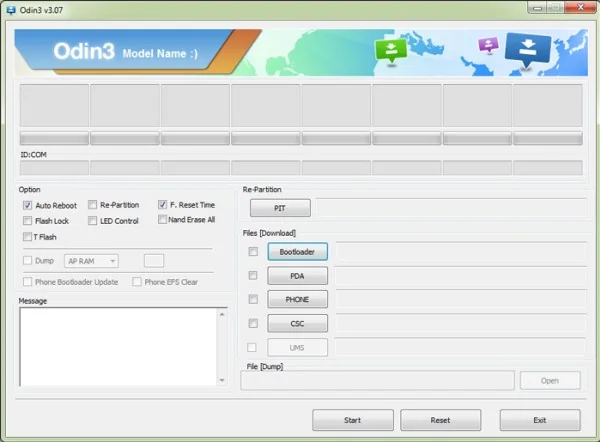
Tools such as Odin and downloaded firmware packages are not routine file-transfer utilities. A wrong package or interrupted flash can make the phone unusable and may erase data. If Smart Switch cannot update or recover the exact device, contact Samsung support or an authorized repair provider. Back up important files before any recovery procedure, and follow the instructions for the exact model and region.
Menu names may vary by Android version and carrier. Use Samsung’s current troubleshooting page for your Galaxy model, and stop if the phone shows physical damage, overheating, or battery swelling.
Related reading: Samsung Odin Not Detecting Your Phone? Safe Checks to Try.

