
A router’s administration page controls how devices connect to the internet and to one another. The exact options depend on the manufacturer and firmware, so a list from an older router should not be treated as a universal menu map. The most useful changes are usually basic security and maintenance steps rather than obscure performance tweaks.

Start with the essentials
Change the router administrator password from its factory default, and use a different strong passphrase for Wi-Fi. Keep the network encryption on the strongest mode supported by your router and devices, preferably WPA3 or WPA2; avoid legacy WEP. Install firmware updates from the router maker, and replace equipment that no longer receives security updates if it protects sensitive devices.

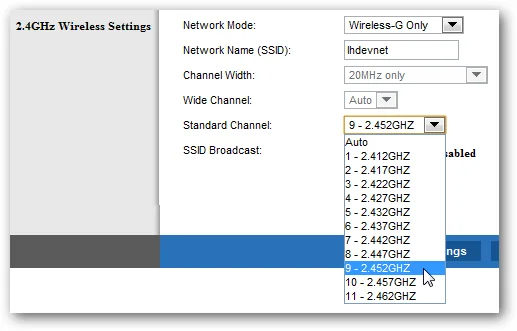
Disable remote administration, WPS or services you do not use. These controls can increase exposure when left enabled without a clear need. A guest network is useful for visitors and smart-home devices that do not need access to computers or file shares. Check the connected-device list occasionally and change the Wi-Fi password if an unknown device remains after you have identified it.

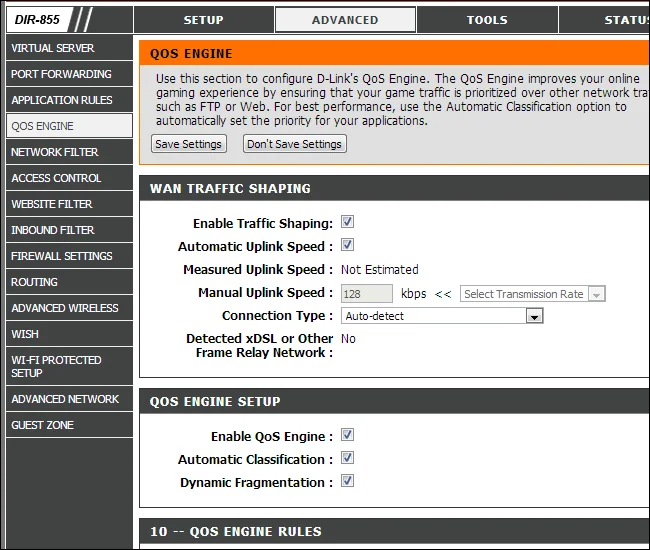

Change settings with a recovery plan
Before editing advanced settings, record the current configuration securely and confirm you can reach the ISP or router support page if internet access stops. Change one setting at a time and test the connection. Avoid copying DNS addresses or firmware from an untrusted forum. If a setting’s purpose is unclear, leave it at its default and consult the official manual for the exact model and firmware version.
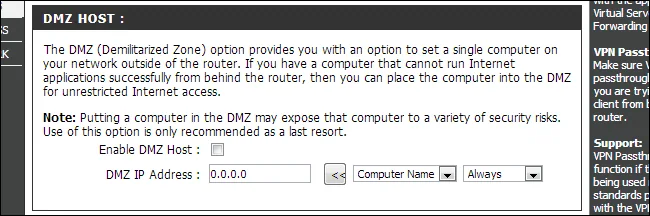
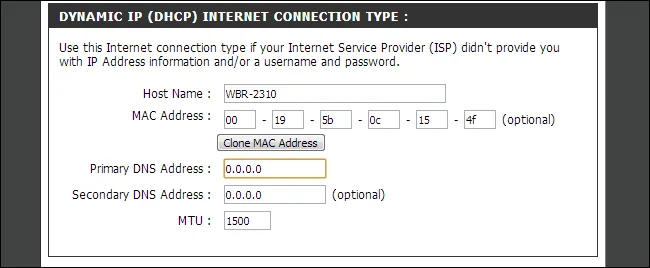
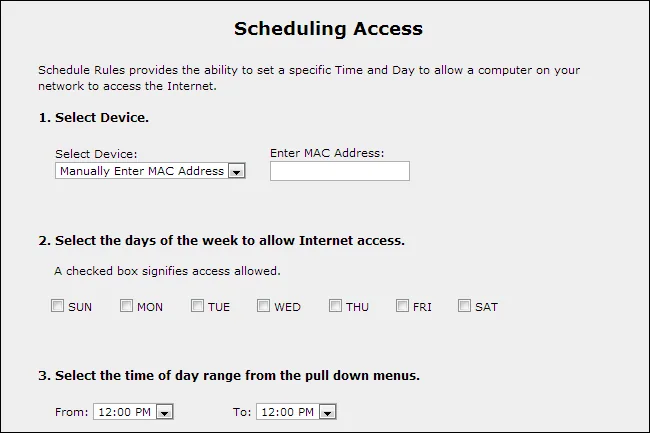
QoS, channel selection and parental controls may help with a specific need, but they do not automatically make a network faster or safer. Monitor whether the change solves the problem and revert it if devices lose connectivity. Router interfaces vary by model and region; do not apply instructions for a different product. CISA’s home-network guidance emphasizes changing default credentials and using modern Wi-Fi encryption. Keep the firmware and recovery details current, and avoid exposing the administration page to the public internet.
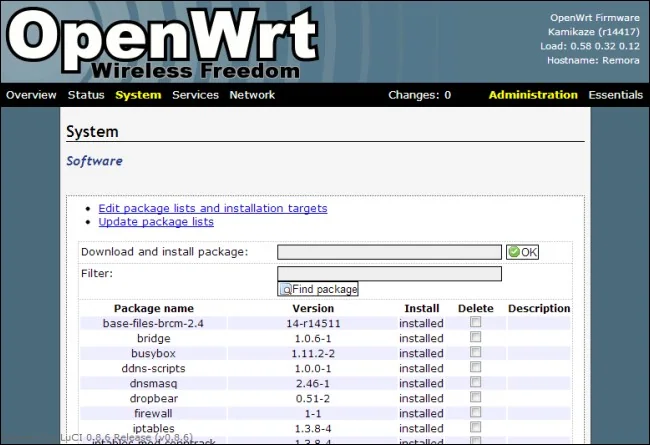
Do not expose the router control panel directly to the public internet merely to make remote administration convenient. Use the vendor’s supported secure management option or a trusted VPN if remote access is essential. Keep a note of the router model and firmware version so help pages match the device. If an option changes connectivity or security unexpectedly, restore the previous value instead of stacking unrelated changes.

